
GrayHashem
New member
- Joined
- Feb 20, 2022
- Messages
- 8
If you have any problems, uninstall the game
Windows 10, step by step guide within a guide for the technically confused.
Step 1
Uninstall any previous attempts
"Before you attempt to install anything if you have failed to install it properly before, make sure you uninstall it properly.
First, off you should run the game's uninstaller, however, this won't be enough - you'll also need to delete the game's folder usually:
Then you will need to delete the following registry values using regedit: {I used registry editor on my Windows 10, i think it came stock}
On a 64-bit system:
On a 32-bit system:
Once you have done that, you are good to install again!"
Step 2
Installing the game:
Pretty straightforward. Insert Disk, install.
Step 3
Patching the game:
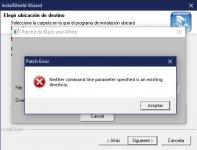
Use Patch. 1.1, 1.2, 1.43 in that order, If you have any trouble. That is because you need to install the game to a new folder on your [C:\Drive] or wherever. As stated in a previous comment. The patches will not work if you patch the game in the original C:\ProgramFiles(x86)\LionheadStudios... Where the CD installs the game, change it.
Make sure to use the right directory to then patch the game with Patch 1.1, 1.2, and 1.43{FanPatch}
It's essential to use the fanmade patch for Windows.
Step 4
Audio
How to get the game to play music by copying the Audio files from Cd into the Black and White Folder you created to allow the Patchs to work.
Step 5
Resolution
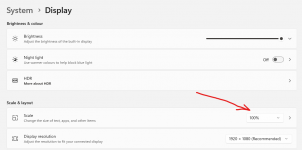
Your Resolution should be 800x600 at first, then change it and alt-tab to bring the task manager up, and terminate the black and white client, until you center the video. Hopefully, your computer can handle this action, other than just running 800x600, until you give up and try to figure it out.
If your installation isn't working, make sure to uninstall the client as Step 1 describes by removing the registry and folder files. Reinstall the game from the disk into a new folder, update with patches 1,2, 3 [fan patch Essential to make it run on Windows 10]. Copy the audio file and replace the audio file in the game folder. Make sure to set the resolution to 800x600 to start, then change it until it fits your monitor. Mine is 1176 x 664.
Step 6.
Hopefully, nothing and you can enjoy the game but just in case. just leave a comment.
Black and White was released in 2001, it's almost 20 years old! And sadly it hasn't aged well, there are a lot of issues, but they can be fixed! Here's how.
Uninstall any previous attempts
Before you attempt to install anything, if you have failed to install it properly before, make sure you uninstall it properly.
First off you should run the game's uninstaller, however this won't be enough - you'll also need to delete the game's folder usually:
Code:C:\Program Files (x86)\Lionhead Studios Ltd\Black & White
Then you will need to delete the following registry values using regedit:
On a 64-bit system:
Code:HKEY_CURRENT_USER\Software\Lionhead Studios Ltd\Black & White HKEY_LOCAL_MACHINE\SOFTWARE\Wow6432Node\Lionhead Studios Ltd\Black and White HKEY_LOCAL_MACHINE\SOFTWARE\Wow6432Node\Lionhead Studios Ltd\Black and White Clan Patch HKEY_LOCAL_MACHINE\SOFTWARE\Wow6432Node\Lionhead Studios Ltd\Black and White Patch HKEY_LOCAL_MACHINE\SOFTWARE\Wow6432Node\Microsoft\Windows\CurrentVersion\Uninstall\{E51B4CD9-A0A6-4324-B26A-31B3F2DE26CE}
On a 32-bit system:
Code:HKEY_CURRENT_USER\Software\Lionhead Studios Ltd\Black & White HKEY_LOCAL_MACHINE\SOFTWARE\Lionhead Studios Ltd\Black and White HKEY_LOCAL_MACHINE\SOFTWARE\Lionhead Studios Ltd\Black and White Clan Patch HKEY_LOCAL_MACHINE\SOFTWARE\Lionhead Studios Ltd\Black and White Patch HKEY_LOCAL_MACHINE\SOFTWARE\Microsoft\Windows\CurrentVersion\Uninstall\{E51B4CD9-A0A6-4324-B26A-31B3F2DE26CE}
Once you have done that, you are good to install again!
Installing the game
First of all you will need a clean copy of the Black & White disc, either in your optical drive or more likely mounted in ISO format. (Don't ask us where to get these.)
All you need to do to install the game is run Setup.exe as Administrator by right clicking it and pressing "Run as Administrator".
You will most likely face issues unless you install the game to the C:/ drive.
Once the game is installed it will ask you if you want to play the game, select no.
You should now install villager banter add-on and football add-on if you want to, these need to be Run as Administrator also.
Creature unlockers do not need to be installed as they are included in the unofficial patch below.
Patching the game
Without the unofficial patch, the game will not launch, so it is crucial you follow the order of steps below exactly.
You should not install patch 1.3, it is a patch purely for the P5 glove.
Your game is now playable, hurrah! However there are some additional steps you may want to take.
- Download and install Patch v1.1 and Run as Administrator.
- Download and install Patch v1.2 and Run as Administrator.
- Download and install Unofficial Patch v1.42 and Run as Administrator.
How to get the game to play music
The installer does not copy music audio over to the game folder and can't play it. You need to copy the Audio folder from the CD to your installation folder.
![]()
When copying you may be asked to merge, simply say yes.
Configuring graphical options
With the fan patch, a Setup.exe is included in the game's directory, simply run it and select your screen resolution and ensure your graphics quality is set to "Maximum Detail".
![]()
Playing the game
When starting the game, set runblack.exe to Run as Administrator.
Don't use Compatibility mode, it will cause more problems then it solves.
If you have any issues please leave a reply below and be descriptive as possible so we can best help you.
Or you can join our Discord for help too.
Have fun playing Black and White!
Other links
Running on Mac?
The Mac port for this game only runs on older Macs (PowerPC) - it is incompatible with newer Macs. Sorry!
Windows 10, step by step guide within a guide for the technically confused.
- If anyone is having any trouble with the black and white installation on windows 10.
- Look no further.
- Please re-read the instructions and listen to my little guide to help you get past all the confusions errors.
- Like the patches not recognizing the game because you didn't make a new folder for the game installation.
- Make sure to do a fresh install and reboot each time.
Step 1
Uninstall any previous attempts
"Before you attempt to install anything if you have failed to install it properly before, make sure you uninstall it properly.
First, off you should run the game's uninstaller, however, this won't be enough - you'll also need to delete the game's folder usually:
Code:
C:\Program Files (x86)\Lionhead Studios Ltd\Black & White
Then you will need to delete the following registry values using regedit: {I used registry editor on my Windows 10, i think it came stock}
On a 64-bit system:
Code:
HKEY_CURRENT_USER\Software\Lionhead Studios Ltd\Black & White
HKEY_LOCAL_MACHINE\SOFTWARE\Wow6432Node\Lionhead Studios Ltd\Black and White
HKEY_LOCAL_MACHINE\SOFTWARE\Wow6432Node\Lionhead Studios Ltd\Black and White Clan Patch
HKEY_LOCAL_MACHINE\SOFTWARE\Wow6432Node\Lionhead Studios Ltd\Black and White Patch
HKEY_LOCAL_MACHINE\SOFTWARE\Wow6432Node\Microsoft\Windows\CurrentVersion\Uninstall\{E51B4CD9-A0A6-4324-B26A-31B3F2DE26CE}
On a 32-bit system:
Code:
HKEY_CURRENT_USER\Software\Lionhead Studios Ltd\Black & White
HKEY_LOCAL_MACHINE\SOFTWARE\Lionhead Studios Ltd\Black and White
HKEY_LOCAL_MACHINE\SOFTWARE\Lionhead Studios Ltd\Black and White Clan Patch
HKEY_LOCAL_MACHINE\SOFTWARE\Lionhead Studios Ltd\Black and White Patch
HKEY_LOCAL_MACHINE\SOFTWARE\Microsoft\Windows\CurrentVersion\Uninstall\{E51B4CD9-A0A6-4324-B26A-31B3F2DE26CE}
Once you have done that, you are good to install again!"
Step 2
Installing the game:
Pretty straightforward. Insert Disk, install.
Step 3
Patching the game:
Use Patch. 1.1, 1.2, 1.43 in that order, If you have any trouble. That is because you need to install the game to a new folder on your [C:\Drive] or wherever. As stated in a previous comment. The patches will not work if you patch the game in the original C:\ProgramFiles(x86)\LionheadStudios... Where the CD installs the game, change it.
Make sure to use the right directory to then patch the game with Patch 1.1, 1.2, and 1.43{FanPatch}
It's essential to use the fanmade patch for Windows.
Step 4
Audio
How to get the game to play music by copying the Audio files from Cd into the Black and White Folder you created to allow the Patchs to work.
Step 5
Resolution
Your Resolution should be 800x600 at first, then change it and alt-tab to bring the task manager up, and terminate the black and white client, until you center the video. Hopefully, your computer can handle this action, other than just running 800x600, until you give up and try to figure it out.
If your installation isn't working, make sure to uninstall the client as Step 1 describes by removing the registry and folder files. Reinstall the game from the disk into a new folder, update with patches 1,2, 3 [fan patch Essential to make it run on Windows 10]. Copy the audio file and replace the audio file in the game folder. Make sure to set the resolution to 800x600 to start, then change it until it fits your monitor. Mine is 1176 x 664.
Step 6.
Hopefully, nothing and you can enjoy the game but just in case. just leave a comment.